


Use the Excerpt block to display the excerpt of a post. This block is primarily nested inside a query loop block and helps to customize the appearance of the query loop.
If the post does not have an excerpt, the Excerpt block displays the first 55 words in the post as the excerpt, followed by the characters ‘[…]’.
The block has an optional Read More link which will direct the website visitor to the URL of the full post. You can customize this link text to anything you like. The Read More link can be styled independently.
 Excerpt block
To add an Excerpt block, click the Block Inserter icon when editing the page template. Search for the Excerpt block. Click on it to add the block to your page template.
 How to add Excerpt block
You can also type /excerpt and hit enter in a new paragraph block to add the Excerpt block quickly.
 Adding Excerpt block quickly
Detailed instructions on adding blocks
Block toolbar
To view the block toolbar, click on the block and the toolbar will be displayed.
Every block comes with unique toolbar icons. These block-specific controls allow you to manipulate the block right in the editor.
The Excerpt block shows these buttons in the block toolbar:
- Transform to
- Drag icon
- Move arrows
- Change text alignment
- Bold
- Italic
- Link
- More
- More options
 Excerpt block toolbar
Transform to
 Transform options in Excerpt block
Click on the Transform button to convert the Excerpt block into a Group block or Columns block.
Transform button from Excerpt block toolbar
Drag icon
 Drag icon in the Post Excerpt block
To drag and drop the block to a new location on the page template, click and hold the rectangle of dots, then drag it to the new location. The blue separator line indicates where the block will be placed. Release the left mouse button when you find the new location to place the block.
Move arrows
 Move arrows in the Excerpt block
The up and down arrow icons can be used to move the block up and down on the page.
Get more information about moving a block within the editor.
Change text alignment
 Change text alignment in Excerpt block
Click the Change alignment button in the Block toolbar to display the alignment drop-down. You can align the block text to the left, make it center-aligned or align it to the right.
Bold

The bold option will make the selected text bolded.
Italic

The italic option will make the selected text italic.
Link

A field to customize the ‘Read more’ link text, the link URL is automatically set to the post.
More
Click the down arrow button to display more styling tools for the Read More link.
Get more information about rich text editing options.
Options
These controls give you the option to copy, duplicate, and edit your block as HTML.

Read about these and other settings.
Block settings
The block settings panel contains customization options specific to the block. To open it, select the block and click the settings icon next to the Save button.
 Block settings to enable sidebar
If you do not see the sidebar, click the ‘sidebar’ icon next to the Publish button. The device icon between Save draft and Publish button shows the preview of the block.
 Excerpt block settings
Show link on new line
Turn on Show link on new line button in the Block Settings to show the Excerpt Read More link on a new line instead of inline next to the excerpt text.
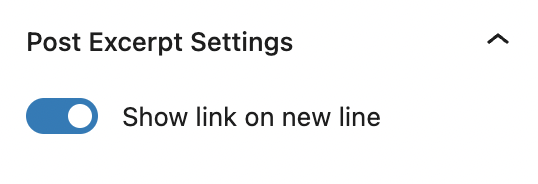 Show Excerpt settings on new line
Max number of words
Adds the ability to control the excerpt length in a design. The default value is 55 words, to match the WordPress default length for excerpts.
 Max number of words for excerpt
Advanced
The following Advanced settings options are available: HTML Anchor, Additional CSS Class(es), Additional CSS, and Styles.
Learn more about advanced settings.
Color
The Excerpt block provides Color settings options to change the text, background, and link colors. Pick a color from the suggestions, or add a custom color using the color picker or by adding a color code.
See this guide for more information about changing colors.
Typography
The Excerpt block provides typography settings to change the font family, appearance, line height, letter spacing, decoration, letter case, and font size.
Get more details about changing typography settings.
Dimensions
Dimension controls are used to control how groups of blocks are placed alongside one another, by changing the values for padding, margin, and other dimensions